





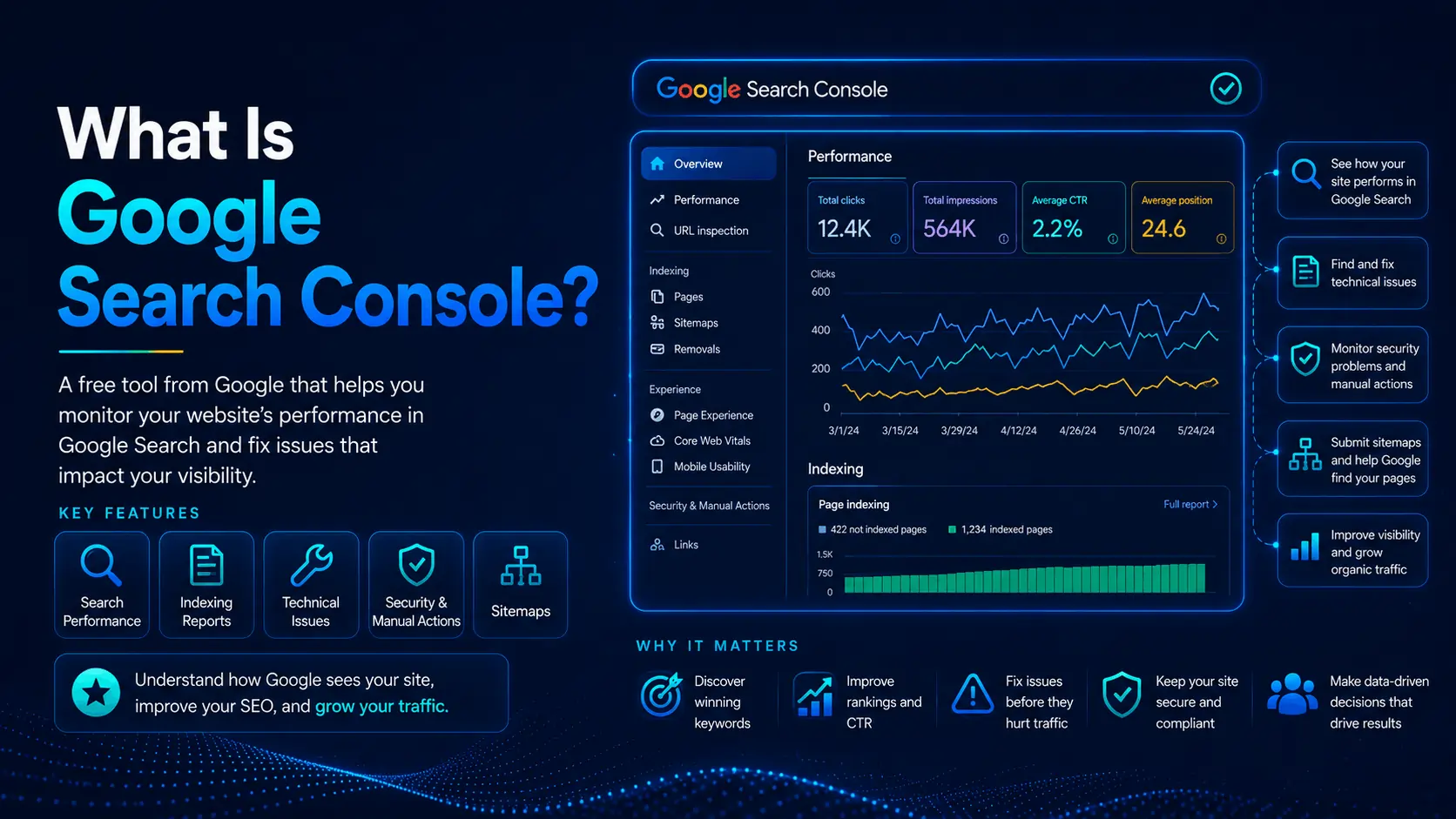
What Is Google Search Console?
Google Search Console is a free Google service that helps you monitor and troubleshoot your website’s presence in Google Search. It shows how people find your pages, which pages Google has indexed, and problems that may affect their appearance in search results. You do not need a Search Console account to appear in Google Search.
Start by verifying your website, checking that important pages are indexed, and reviewing the searches that bring visitors. Those three tasks give you a useful foundation before you explore the other reports.
If you need the tool itself, open Google Search Console and select Start now.
What can you use Google Search Console for?
Use it to investigate practical issues: a new service page has not appeared in search, an article has lost clicks, or Google has reported trouble accessing your site. The reports help you narrow down the cause and decide what to inspect next. Changes to content or website settings usually happen in your website platform.
Search Console and Google Analytics serve different purposes. Search Console reports search visibility and clicks. Google Analytics reports visits and activity on your website, including purchases or inquiries when tracking is configured. Their clicks and sessions are measured differently, so the totals may differ.
How to set up Google Search Console
1. Add your website as a property
A property defines the website or section you can examine in Search Console. Sign in with a Google account and choose Add property. For a website, choose the scope that matches your access and reporting needs.
| Property type | What it includes | When to choose it |
|---|---|---|
| Domain | The specified domain, its subdomains, and HTTP/HTTPS versions | You want a combined view and can verify through DNS. Enter the domain without a protocol or path. |
| URL-prefix | URLs beginning with the exact prefix, including protocol and any specified path | You need a particular section or a verification method that does not require DNS access. |
For example, a URL-prefix property for https://www.example.com/ excludes https://example.com/. A Domain property for example.com covers both. If a property owner has granted you access, select the existing property.
2. Verify ownership
For a Domain property, follow the DNS verification instructions. DNS settings are managed by the provider that controls your domain’s records, which may be your registrar or hosting provider.
For the common TXT-record method:
- Copy the verification value shown in Search Console.
- Add a TXT record in your DNS settings, using your provider’s instructions for the name and value fields.
- Save the record and return to Search Console to select Verify.
DNS changes can take time to become visible. If verification fails, check the record and allow time before trying again. Keep the verification record after setup.
URL-prefix properties also support methods such as an HTML file or HTML tag. Google Analytics and Google Tag Manager verification require the correct configuration and account permissions. Choose a method you can maintain.
New property data can take a few days to appear. If reports remain empty, check the property’s URL scope and investigate if the site has appeared in search.
3. Check your sitemap
A sitemap lists URLs you want search engines to discover. Your website platform may create and manage one automatically, so check its settings or documentation for the actual address.
To submit it, open Sitemaps, enter its address in Add a new sitemap, and select Submit. You need owner permissions to submit through this report.
Check the reported status. Success means Google fetched and read the sitemap. It does not mean every listed page is indexed. If the sitemap cannot be fetched, open the error details and check that Google can access the file.
A small site with clear links between its pages may not need a sitemap. An empty Sitemaps report also does not prove Google has never found one: this report lists sitemaps submitted through the report or API.
Check that Google can index important pages
Crawling means fetching a page. Indexing means processing its content for possible inclusion in search results. A page can be crawled without being indexed. Google’s explanation of search concepts.
Start with your homepage and key service, product, or article pages. Use Page indexing for patterns across the site and URL Inspection for one address.
Inspect one URL before changing anything
Paste the full page address into the inspection bar. Review its indexing status, last crawl information, and Google-selected canonical. The canonical is the version Google treats as the main page among duplicate or very similar URLs.
The initial inspection describes Google’s stored information. Select Test live URL to check the current page, especially after a fix. A successful live test does not guarantee indexing. Likewise, URL is on Google means the page is indexed and eligible to appear, not that it will appear for every relevant search.
Decide which exclusions need attention
Your goal is to have important, distinct pages indexed. Redirects, duplicates, and intentionally excluded pages can legitimately appear under Not indexed.
| Indexing reason, in plain language | Useful next step |
|---|---|
| Excluded by a noindex directive | Check if exclusion was intended. Remove the directive only if the page should appear in search. |
| Blocked by robots.txt | Check for an unintended crawl restriction. Robots.txt controls crawling and does not reliably prevent indexing. |
| Not found (404) | Restore an accidentally deleted page or redirect a moved page to a relevant replacement. A permanently removed page can remain a 404. |
| Alternate page with proper canonical | Confirm the preferred version is correct. An intentional duplicate usually needs no fix. |
| Crawled, currently not indexed | Review the page and its role. This status alone does not identify a content defect, and Google says resubmission is unnecessary. |
| Discovered, currently not indexed | Google knows the address but has not crawled it. Check discovery links and investigate persistent problems affecting important pages. |
These actions follow Google’s Page indexing guidance.
After fixing a relevant problem or substantially updating a page, you can use Request indexing in URL Inspection. You need owner or full-user access. Repeated requests do not speed up crawling, and submission does not guarantee inclusion. For many new or updated URLs, use a sitemap.
Read the Performance report without misinterpreting it
Open the search performance report, often labeled Performance or Search results. Begin with the Web search type.
The four main metrics are:
- Clicks: Clicks from Google Search results leading to your site. These are not unique visitors.
- Impressions: Recorded appearances of links to your site in results. Counting rules vary by result type.
- Click-through rate (CTR): Clicks divided by impressions, multiplied by 100.
- Average position: The average position of your highest result for each recorded impression, based on the report’s grouping. It is not a fixed ranking everyone sees.
For example, 30 clicks from 1,000 impressions produces a 3% CTR. Google’s metric definitions.
Make a useful comparison
As a starting routine:
- Compare 28 completed days with the preceding 28 days, avoiding dates marked as preliminary.
- Add a United States country filter if that is the audience you serve.
- Open Pages and select a page whose clicks changed noticeably.
- Open Queries to see the searches associated with that page.
- Compare individual queries and devices before deciding what needs work.
For seasonal content, also compare a similar period from the previous year when data is available. A drop can come from changing search demand, technical problems, or changes in search results. The chart alone cannot identify the cause. Google’s traffic investigation guide.
Treat 28 days as a starting point, not a statistical threshold. A page with very few impressions may need a longer comparison period before a pattern is useful.
Know the reporting limits
The newest performance data can be preliminary and change later; Google identifies it with a dotted line. Compare completed periods when assessing a change. Google’s explanation of performance data.
Some queries are hidden for privacy, and the query table is incomplete. Its visible rows may not add up to the headline totals. Query filters can also remove anonymized data. Most page performance is credited to Google’s chosen canonical URL, which can explain apparent gaps for duplicate addresses. Google’s dimensions and data grouping guide.
Worked example: lower CTR can accompany more clicks
Hypothetical example: A cleaning guide received 4,000 impressions and 120 clicks in an earlier 28-day period. Its CTR was 3%.
In the next completed 28-day period, using the same page, country, device, and search type filters, it has this simplified breakdown:
| Query group | Impressions | Clicks | CTR |
|---|---|---|---|
| Queries present in the earlier period | 4,000 | 120 | 3% |
| Additional queries appearing in the later period | 4,000 | 40 | 1% |
| Total | 8,000 | 160 | 2% |
Overall CTR fell from 3% to 2%, but clicks increased from 120 to 160. The original query group kept the same impressions, clicks, and CTR. The lower overall CTR came from adding a group with a lower click rate.
Rewriting the title solely because overall CTR fell would skip the diagnosis. A useful next step is to inspect the additional queries:
- If they closely match the guide, check their individual positions and look for missing explanations that would help those readers.
- If they reflect a different need, avoid stretching the page to cover an unrelated topic.
- If relevant queries show lower CTR at similar positions, review the current search results and how accurately your title and page address the query.
Google’s Performance report use cases support reviewing page content and search presentation when investigating low CTR.
The figures above are invented to demonstrate the arithmetic. They assume complete data for two query groups; an actual query export can omit rows. The example does not establish why the additional queries have a lower CTR or predict the effect of an edit.
Which other reports deserve a look?
Check Security issues and Manual actions if Search Console alerts you. These can identify problems that affect your site’s presence in search. Use the reported issue and linked instructions to guide the response. Google’s report overview.
After the basic checks, these reports can help with specific work:
- Core Web Vitals: Shows loading, responsiveness, and layout stability using actual user data. A “No data available” message can reflect insufficient data or a new property; it does not prove good or poor performance. Core Web Vitals documentation.
- Links: Shows a sample of internal and external links. Use it to investigate how pages connect, keeping in mind that it is not a complete link inventory. Links report documentation.
- Rich result reports: Help troubleshoot supported structured data, the markup describing content such as products or recipes. The available reports depend on what Google finds. Rich result report documentation.
Build a repeatable review habit
Google suggests checking around monthly or after content changes; daily visits are unnecessary for many site owners. Check sooner when you receive an alert or notice a substantial traffic change. Google’s getting-started guidance.
Keep a short record for each action: the page, date, observed issue, change made, and result to review. This helps you assess changes without relying on memory or attributing every fluctuation to your last edit.
During your first session, verify the property, inspect one important URL, and compare that page’s search performance across two completed periods. Choose one action supported by what you find, then record a follow-up date.
Frequently Asked Questions About Google Search Console
These FAQs answer the most common questions about Google Search Console.
What is Google Search Console used for?
Google Search Console is used to monitor how your website performs in Google Search. It shows which queries bring impressions and clicks, which pages Google indexes, and which technical issues may affect your search visibility.
How do I get Google Search Console?
You can get Google Search Console by signing in with your Google account, adding your website as a property, and verifying that you own it. After verification, you can submit your sitemap and start tracking your site’s search performance.
Do I need to pay for Google Search Console?
No. Google Search Console is completely free. Google offers it to website owners so they can monitor search performance, check indexing status, and fix issues that may affect how their site appears in Google Search.
How often should I check Search Console?
Check Google Search Console at least once a week to review clicks, impressions, indexing issues, and site health alerts. You should also check it after publishing new content, updating important pages, or making technical changes to your site.
What does Google Search Console track?
Google Search Console tracks search impressions, clicks, average position, click-through rate, indexed pages, sitemap status, links, Core Web Vitals, security issues, and manual actions. These reports help you understand how Google sees your site and where you can improve.
Last Updated on 4 days ago by Alipio Umiten IV
